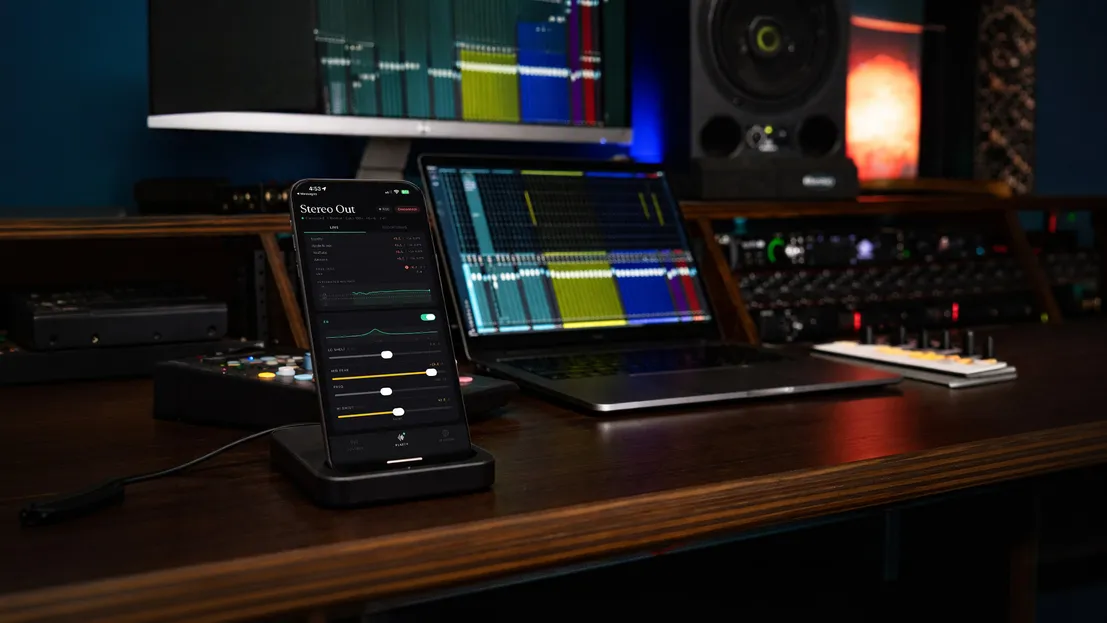
Checking your mix on different playback systems is standard practice. Consumer earbuds, laptop speakers, a phone in a different room — each one reveals something your studio monitors won't. Getting your DAW audio onto your phone in real time has historically meant either expensive plugins or bouncing a file and waiting.
This guide covers real-time streaming: your DAW's output, live, on your phone, with LUFS metering. Setup takes under 60 seconds.
What you need
- The Auxfeed plugin — free, for macOS (AU / VST3 / AAX) or Windows (VST3 / AAX)
- The Auxfeed app — free on iOS (App Store) or Android (Google Play)
- Both devices on the same Wi-Fi network
No account. No subscription for local monitoring.
Step 1: Install the plugin
Download the Auxfeed installer from auxfeed.com for your platform:
- macOS: Universal installer includes AU, VST3, and AAX formats
- Windows: Installer includes VST3 and AAX
Run the installer. Your DAW will find the plugin on next launch — or on a manual plugin rescan if you prefer.
Pro Tools: Auxfeed installs as AAX. It appears in your plugin menu under Auxfeed.
Logic Pro: Auxfeed installs as AU. It appears under Audio Units > Payette Forward > Auxfeed.
Ableton Live: Auxfeed installs as VST3 (and AU on macOS). Rescan your plugin folder if it doesn't appear immediately.
REAPER: VST3 or AU on macOS, VST3 on Windows. REAPER finds it on the next scan.
Step 2: Insert the plugin on a track or bus
Auxfeed works on any track, bus, or master. Where you insert it determines what you hear.
For monitoring your full mix: Insert on the master output bus. You'll hear everything.
For spot-checking a stem or bus: Insert directly on the drum bus, vocal bus, or any submix. Each Auxfeed instance runs its own independent stream — you can have multiple instances running simultaneously and switch between them in the app.
In each DAW:
- Pro Tools: Insert Auxfeed on the master fader as an insert effect. It passes audio through transparently.
- Logic Pro: Insert on the stereo output channel strip.
- Ableton: Insert on the master track. Position it after your limiter if you have one.
- REAPER: Insert on the master track via the FX chain.
Once inserted, the plugin window opens. Name your stream if you want — useful when running multiple instances. Then select your codec.
Step 3: Choose a codec
PCM lossless — Bit-perfect audio at your session's sample rate. No encoding, no artifacts. Uses the most bandwidth. Best for fast, uncongested Wi-Fi. This is the default.
Opus — Compressed at 64–320 kbps. Excellent quality for the bandwidth. Good choice on congested Wi-Fi networks or weak signals. Opus decodes to your session's sample rate.
AAC — Available on iOS only (Apple AudioToolbox). Not available on Android.
For most studio setups on a fast local network, PCM lossless is the right default. If you're hearing dropouts or glitches, switch to Opus.
Step 4: Start streaming
Hit Start in the plugin. It begins advertising itself on your local network via Bonjour (mDNS). No outbound internet connection is required for local streaming.
Step 5: Connect from the app
Open the Auxfeed app on your phone. Your stream appears automatically — no IP address, no port number. Tap to connect.
You'll see:
- Live audio from your DAW
- Per-channel peak meters at 60fps with peak hold
- Momentary LUFS and Short-term LUFS (EBU R128)
The stream is live. Changes in your DAW — fader moves, EQ adjustments, plugin bypass — are reflected immediately.
Monitoring from the live room
Phone speakers in landscape mode (iOS): Turn your iPhone sideways. The app switches to landscape layout and activates both the bottom speaker and the earpiece for true stereo output. This is the closest your phone gets to a dedicated monitoring speaker.
AirPlay (iOS): Tap the audio output picker in the app and route to any AirPlay 2 device — HomePod, HomePod mini, Apple TV, or third-party AirPlay speakers. AirPlay introduces 1–3 seconds of latency, so it's useful for checking playback, not real-time critical monitoring.
Running multiple streams
Each Auxfeed plugin instance is independent. Insert Auxfeed on the master, the drum bus, and the vocal bus simultaneously — three separate streams, each with its own name. The app lists all active streams. Tap any to switch.
This is useful for comparing the full mix to a single stem, or handing a phone to a vocalist to monitor their own voice while you work.
Remote monitoring
Everything above works on your local Wi-Fi network with no account and no subscription.
If you need to connect from a different network — your client is at home, you're at a different facility — that requires Auxfeed Pro ($9.99/mo or $79/yr). Pro adds remote streaming via a 6-digit pairing code through the Auxfeed relay server. The setup is the same; you share the pairing code instead of relying on auto-discovery.
Troubleshooting
The stream doesn't appear in the app.
Check that both your computer and phone are on the same Wi-Fi network. Some routers disable mDNS/Bonjour between network segments — if your computer is wired and your phone is on Wi-Fi, they may not be on the same subnet. Also check that macOS's built-in firewall is not blocking Auxfeed.
Audio is cutting out.
Switch the codec from PCM lossless to Opus. Opus is more resilient on congested or lower-bandwidth Wi-Fi. If dropouts continue, check your Wi-Fi signal strength.
Logic Pro doesn't show the AU plugin.
Run a plugin rescan: Logic Pro menu > Preferences > Plug-in Manager > Reset & Rescan Selection.