Short answer: when your phone can't find your stream on Wi-Fi, it's almost always one of four things. The plugin isn't streaming or your DAW isn't playing, the phone is on a different Wi-Fi, the app isn't allowed to use the network, or your computer's firewall is keeping your phone out. Start at the top and work down.
Not sure where to start? In the plugin window, click ? and choose Check connection. It checks this computer for you and tells you what it finds.
Check These Four Things, in Order
Step 1: Make Sure the Plugin Is Streaming and Your DAW Is Playing
Your phone can only find a stream that is running.
- The plugin is inserted on a track or your master bus, in an open project.
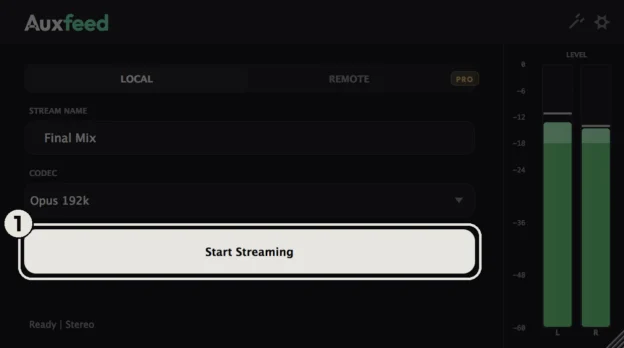
- The stream is live. If the plugin window shows Start streaming, click it.
- Your DAW is playing. Press play. Your phone hears what leaves that track, so a stopped transport sounds like silence even when you're connected.
Plugin not installed yet? Get it free for Mac or Windows.
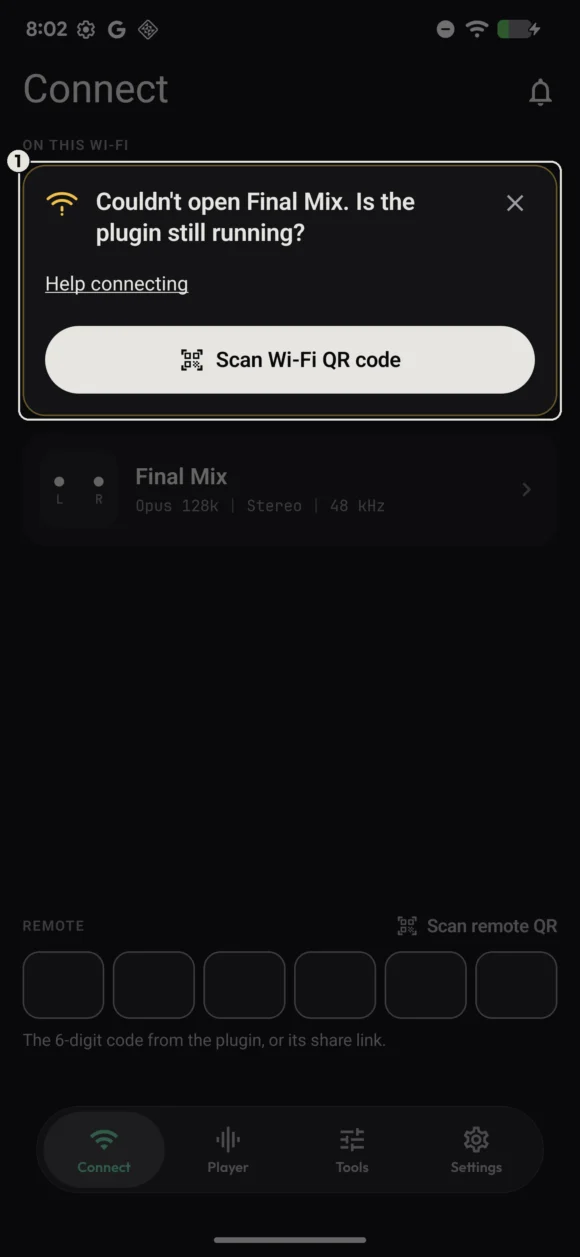
Step 2: Put Your Phone on the Same Wi-Fi as Your Computer
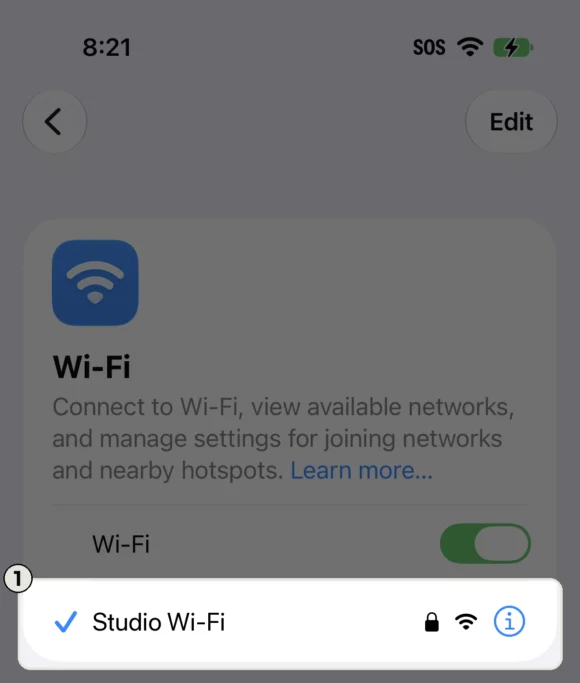
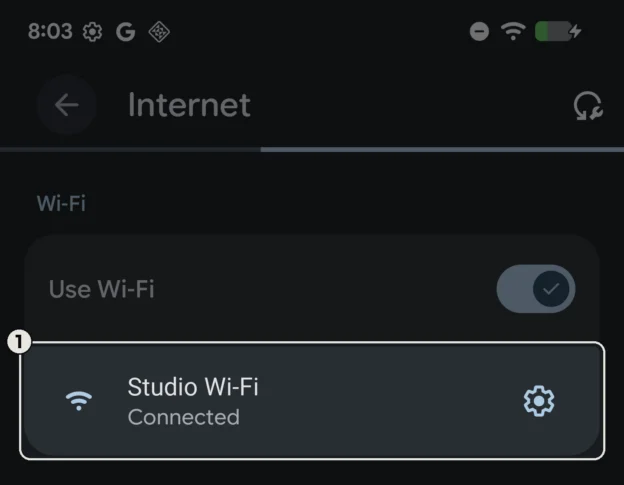
Open your phone's Wi-Fi settings and check that the network name matches the one your computer uses. A computer plugged into the router with a cable is fine too, as long as your phone is on that router's Wi-Fi.
- Not on cellular. If your phone dropped off Wi-Fi, it can't see your computer. Turn Wi-Fi back on and pick your network.
- Not a guest network. Guest networks keep devices apart on purpose. Join the main network instead.
- VPN off. A VPN on your phone or your computer can route around your Wi-Fi. Switch it off and try again.
- Does your router keep devices apart? Some routers, and many office, hotel and shared studio networks, stop devices from reaching each other. The setting is often called AP isolation or client isolation. Turn it off in the router, or ask whoever runs the network.
On a network you can't change? Remote streams over the internet instead, so your phone doesn't need to be on that Wi-Fi at all. Remote needs Pro.
Step 3: Let the Auxfeed App Use the Network
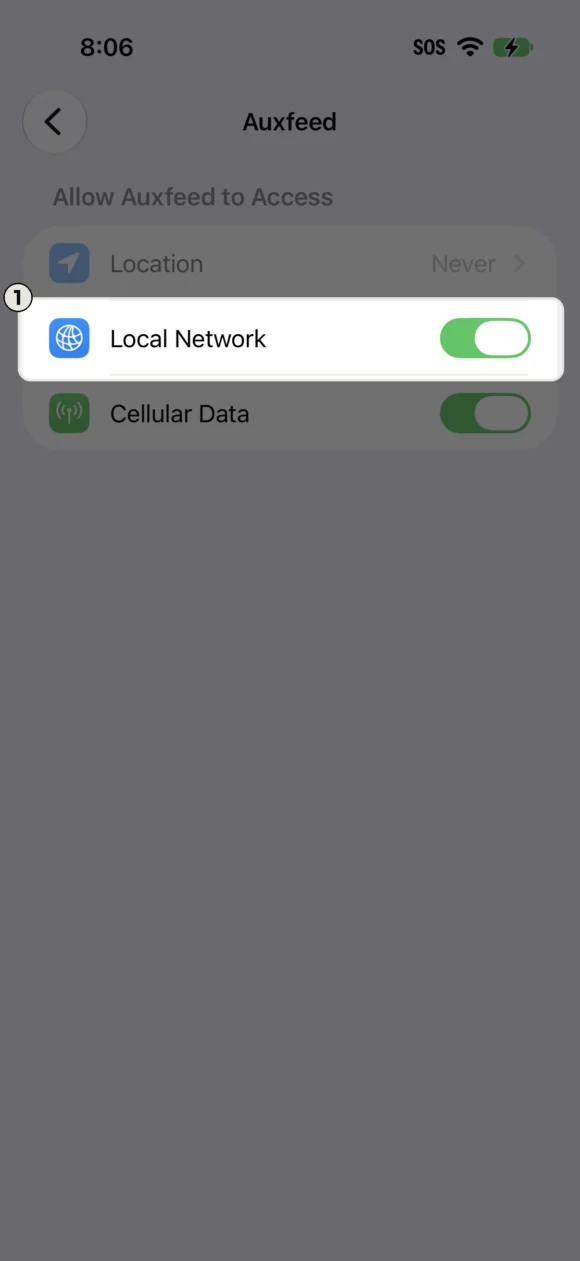
iPhone and iPad: the first time you open Auxfeed, it asks to find devices on your network. If you tapped Don't Allow, open Settings, scroll down to Auxfeed and turn on the network permission there, the switch that lets Auxfeed find devices on your Wi-Fi. (Cellular Data is a different switch.) Then open Auxfeed again.
Android: open Settings > Apps > Auxfeed > Permissions. If Nearby devices is listed, set it to Allow. Then open Auxfeed again.
Step 4: Let Your DAW Through Your Computer's Firewall
The Auxfeed plugin runs inside your DAW, so your phone is connecting to your DAW. If the firewall doesn't let your DAW accept connections, your phone can't reach it.
The quickest way: click ? in the plugin window and choose Check connection. If a firewall is in the way, it names the problem and gives you the exact steps for your computer. Or follow these:
On a Mac
- Open System Settings > Network > Firewall. On macOS 12 and earlier, it's System Preferences > Security & Privacy > Firewall.
- If the firewall is on, click Options and make sure Block all incoming connections is off.
- Find your DAW in the list and set it to Allow incoming connections. Not in the list? Click + and add it.
- Quit your DAW, open it again, and try your phone.
To test, turn the firewall off, try your phone, then turn the firewall back on. If your phone connects with it off, allowing your DAW is your fix. And when macOS asks whether your DAW may accept incoming network connections, click Allow.
On Windows
- Open Windows Security > Firewall & network protection > Allow an app through firewall, then click Change settings.
- Tick Auxfeed Wi-Fi Connect and your DAW under Private. Your DAW isn't listed? Click Allow another app and add it. Auxfeed Wi-Fi Connect missing? Run the Auxfeed installer again.
- Set your Wi-Fi to Private: open Settings > Network & internet > Wi-Fi, open your network's properties, and under Network profile type choose Private. Windows treats a Public network as untrusted and keeps phones out.
Does your antivirus come with its own firewall? Allow your DAW and Auxfeed Wi-Fi Connect there too.
Still Stuck?
Email us at contact@auxfeed.com with your computer, your DAW and your phone, and we'll sort it out. If the app shows an error, tap Send logs first: it shows us exactly what happened (how logs work).