Can you use AirPods to reference-check a mix? Yes, and you should. AirPods are the most widely used earbuds on the planet, so they are how a huge share of your listeners will hear the track.
Are AirPods good for mixing? Not for making mix decisions: they are not flat, their bass falls away below about 60-80 Hz, and Apple's adaptive EQ and Spatial Audio change what you hear. Use them for confirmation, not decisions.
This guide covers what AirPods tell you about a mix, where they will mislead you, and how to use them as one piece of a multi-reference workflow.
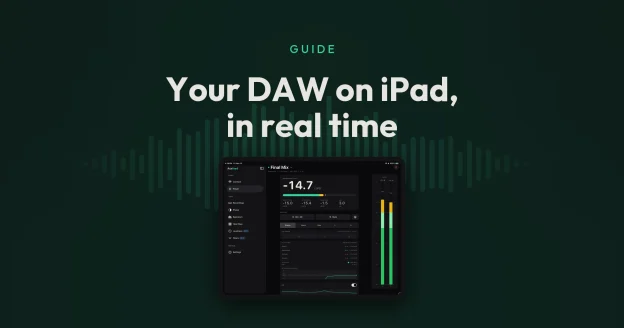
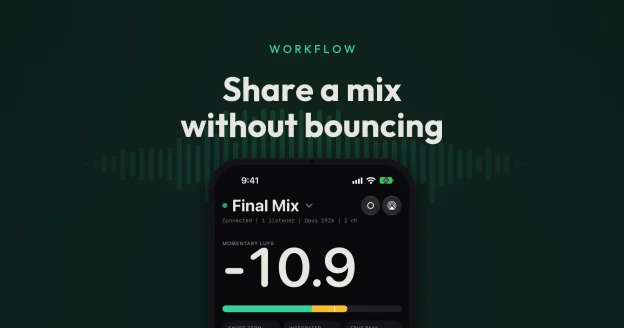
You can hear your live DAW mix on AirPods without bouncing a file: the free Auxfeed plugin on your master bus streams it to your phone, and your phone handles the Bluetooth hop. Get Auxfeed free, or jump to how to set it up.
What Are AirPods Good For When You Mix?
The Consumer Playback Perspective
The most important thing AirPods give you is not a flat measurement or a clean mix view. It's a reality check.
When someone streams your track on Spotify and listens through AirPods on the subway, that is the experience you are making music for. Not the NS-10s. Not the Genelecs. If your mix sounds genuinely good through AirPods — clear, punchy, and engaging — that's a strong signal it will hold up across the consumer listening chain.
Checking Midrange Presence
AirPods have a pronounced boost in the presence region — roughly 2–5 kHz — consistent with Apple's consumer-tuned EQ targeting. This is actually useful diagnostic information.
If a vocal, guitar, or synth sounds harsh on AirPods but not on your monitors, that harshness is real. Your monitors may be flattering it. If an element sounds buried and recessed through AirPods, there's a good chance it's fighting in the upper midrange and losing.
The presence emphasis that makes AirPods "wrong" for critical EQ work is the same thing that makes them a good early warning for midrange problems.
Mid-Level Complexity
Background elements — subtle pads, secondary percussion, third-tier layers — tend to either collapse or pile up when a mix is played on consumer earbuds. On a good set of studio monitors with a flat response, you can hear everything cleanly separated. On AirPods, you hear what your listeners actually parse.
If a background texture disappears entirely on AirPods, ask whether it was serving the mix at all. If two elements that sounded distinct in the studio become a smeared blob, you may have a masking problem that your monitoring environment was papering over.
Can You Make Mix Decisions on AirPods?
Sub-Bass and Low-End Accuracy
This is the most important limitation to understand. AirPods Pro can reproduce some bass — they're in-ear earbuds with a seal, and Apple has tuned in a notable low-end elevation — but consumer earbuds are physically limited in the lowest octaves. The frequency response drops off significantly below roughly 60–80 Hz, and what bass you hear is shaped by Apple's loudness-dependent adaptive EQ, which adjusts dynamically based on your listening volume.
You cannot make accurate low-frequency mixing decisions on AirPods. Kick punch, sub-bass level, the relationship between kick and bass — all of this requires a subwoofer, a trusted room, or full-range closed-back headphones to evaluate correctly. Use AirPods to confirm a kick is felt, not to set its level.
Stereo Width Accuracy
AirPods Pro and AirPods Max include Apple's Spatial Audio with head tracking, and by default this feature is active for both music and video. Head tracking physically remaps the stereo field as you move your head, which means the stereo image you're hearing through AirPods may not reflect what's actually in your mix.
If you are checking stereo width, panning decisions, or mid/side balance on AirPods, disable Spatial Audio first. See below for how to do that.
Critical EQ Decisions
AirPods are not a flat transducer. Their frequency response is shaped for consumer enjoyment — elevated low end, boosted presence, a dip around 120 Hz. Apple also applies adaptive EQ that adjusts based on ear fit and listening volume, which means the curve you hear at 60% volume is not the same curve you hear at 30% volume.
This makes AirPods unreliable for precise EQ decisions. Don't shelve highs or cut lows based on how things sound on AirPods. Make those calls on a reference you've measured or spent years learning. Use AirPods to confirm the overall shape feels right to a consumer ear, not to dial in surgical moves.
Where Do AirPods Belong in a Mixing Workflow?
A sensible multi-reference workflow puts AirPods third, not first.
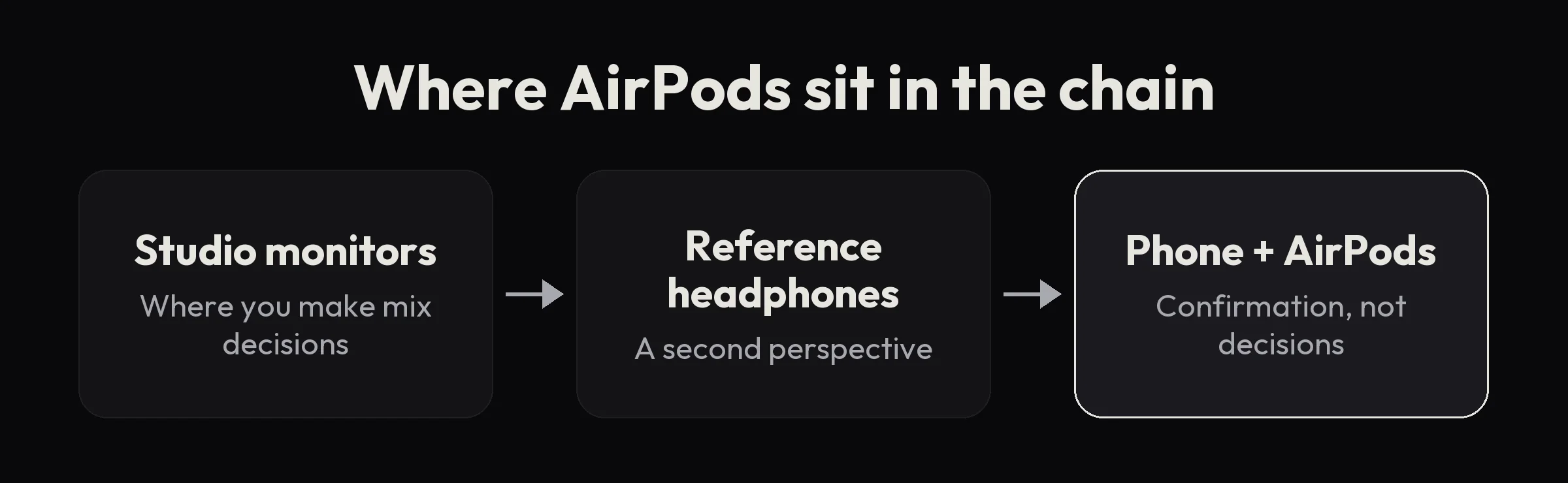
- Studio monitors — this is where you make mix decisions. A calibrated room with monitors you know is irreplaceable for critical EQ, dynamic balance, and stereo image work.
- Reference headphones — closed-backs like the Sony MDR-7506, Beyerdynamic DT 770 Pro, or AKG K240 give you isolation and a second perspective.
- Phone + AirPods — the consumer reality check. Not for decisions; for confirmation. This is where you hear what your listeners hear.
When to do the AirPods pass: before printing a final bounce, before sending a revision to a client, and after a long session when your ears are fatigued. A fresh listen on a familiar consumer device cuts through ear fatigue almost immediately.
How Do You Hear Your DAW Mix on AirPods, Live?
Playing a rendered file through Apple Music doesn't count. You want to hear the actual mix, in real time, as you're working. That's where Auxfeed comes in.
The workflow is three steps:
- Install the Auxfeed plugin (free, AU/VST3/AAX on macOS, VST3/AAX on Windows) and insert it on your master bus.
- Open the free Auxfeed app on your iPhone. As long as your phone is on the same Wi-Fi as your studio computer, it connects automatically — no account, no setup.
- Connect your AirPods to your iPhone. iOS routes the audio to them automatically. Press play in your DAW and you're hearing the live mix through your AirPods.
You can walk around the room, step into a different acoustic space, or sit on the couch with a different headspace — all while monitoring the live output of your session. No bouncing, no exporting.
Why Not Connect AirPods Straight to Your Computer?
Because the computer's Bluetooth path is the wrong one for monitoring. Switching your DAW's output to AirPods moves it off your audio interface, and three things go wrong at once:
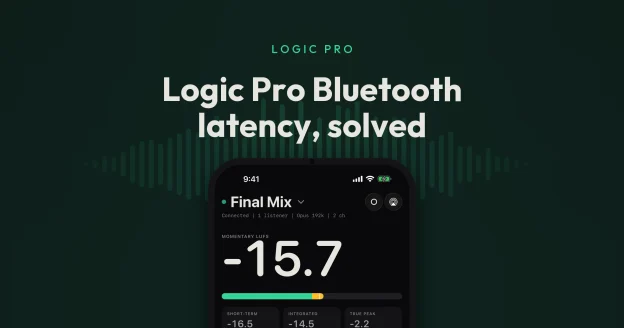
- Latency jumps. Logic Pro users report output latency of about 7 ms on a USB interface and about 135 ms the moment the output switches to AirPods. Fine for listening back, useless for playing along.
- You don't control the codec. macOS can fall back to SBC where AAC is available. An iPhone sends AAC to AirPods automatically.
- Your interface route breaks. Your monitors go quiet and you have to switch the output back when you are done.
The fix is to leave the DAW on your interface and send a parallel, one-way copy of the master bus to your phone. Pair the AirPods to the phone, not to the computer. The computer never knows.
Should Spatial Audio Be On When You Reference-Check a Mix?
iOS will apply Spatial Audio processing to Auxfeed's audio stream if the feature is enabled on your AirPods. For a reference check where you want to hear your actual stereo field, disable it first.
To disable Spatial Audio on your AirPods in iOS:
- Open Settings on your iPhone with your AirPods connected.
- Tap your AirPods name at the top of the Settings screen.
- Tap Spatial Audio and set it to Off.
You can also access a quick toggle by holding down the volume slider in Control Center while your AirPods are connected — tap Spatial Audio in the lower right and set it to Off.
Once disabled, what you hear is the stereo mix Auxfeed is streaming — your actual panning and width decisions, without iOS reshaping the image.
What Should You Listen For in an AirPods Reference Pass?
Run through this before you print or send:
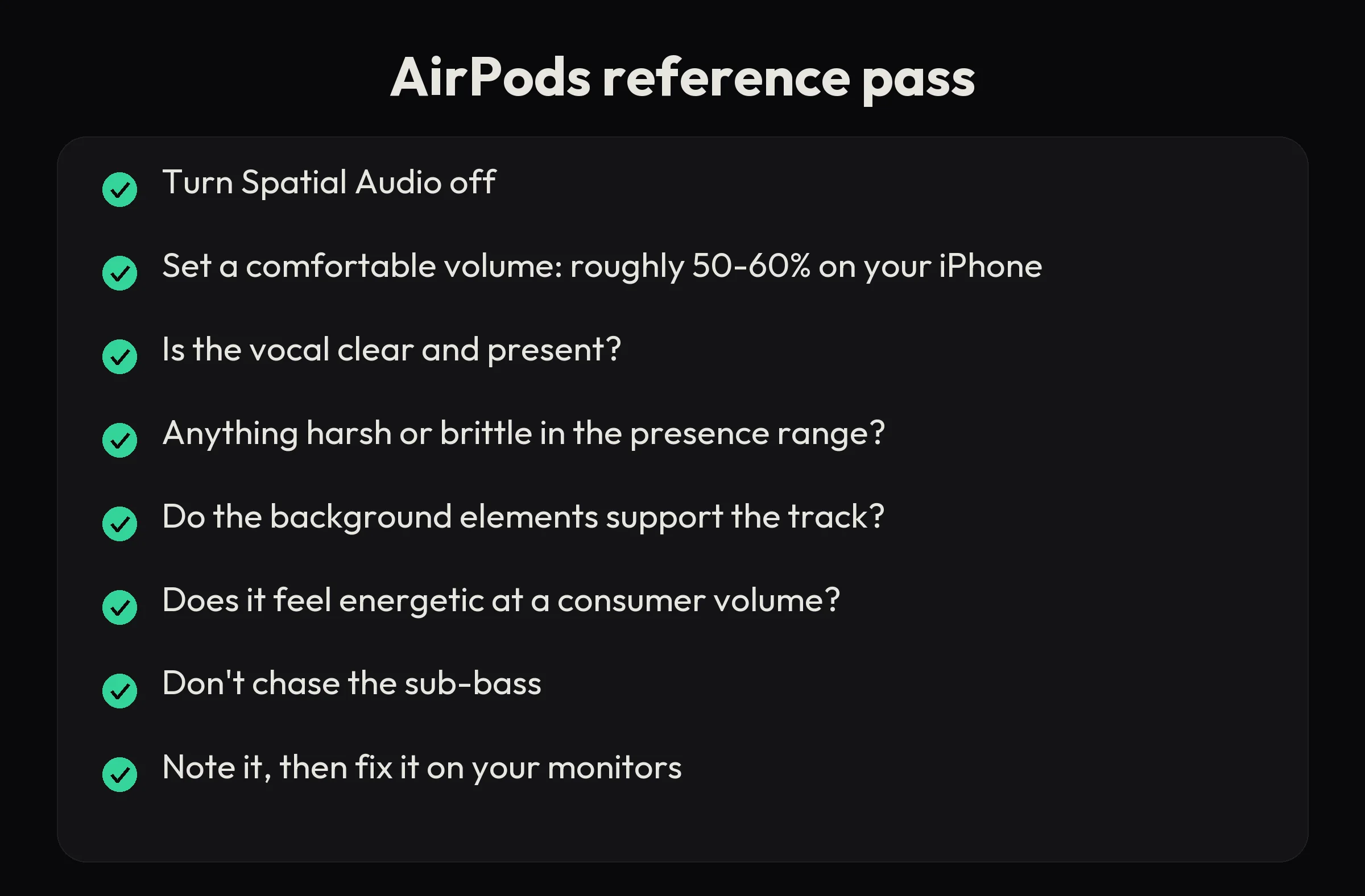
- Disable Spatial Audio before starting the reference pass.
- Set a comfortable listening volume — roughly 50–60% on your iPhone. Adaptive EQ shifts at extreme volumes.
- Is the vocal clear and present? If it sounds buried, check your upper midrange on monitors.
- Does anything sound harsh or brittle? The presence boost is real — if something is biting on AirPods, it's biting in real life.
- Do the background elements make sense? Do they support the track or clutter it?
- Does the mix feel energetic and engaging at a consumer volume? Not studio-loud — the volume a listener would use while commuting.
- Don't chase the sub-bass. If the low end sounds thin on AirPods, go back to your monitors before making changes.
- Note your observations, then return to the studio to act on them. Use AirPods to identify problems; solve them on a flat reference.
Questions About Checking a Mix on Bluetooth Headphones
Does this work with headphones other than AirPods?
Yes. The phone picks the Bluetooth codec, so any headphones paired to the phone work: AirPods Max, Sony WH-1000XM5, Bose, Sennheiser and generic SBC-only models. An iPhone uses AAC; an Android phone may negotiate LDAC or another codec. Expect each pair to color the sound differently, which is the point of a consumer reference.
Can I track vocals or play instruments this way?
No. Bluetooth alone adds roughly 80-150 ms, and the stream adds its own delay on top. That is fine for checking a mix and far too slow for tracking. Use wired in-ear monitors or headphones to record.
Can I check my mix on AirPods from another room or city?
Yes. With Auxfeed Pro ($9.99/month or $79.99/year) the plugin gives a share code that works across networks. Streaming on your own Wi-Fi is free.
The Bottom Line
Mixing on AirPods is not a workflow — it's a reference check. Used correctly, it's one of the most valuable things you can do before sending a mix, because it's the most honest representation of how your listeners will actually hear it.
Used incorrectly — as a primary mixing environment, as a basis for EQ decisions, without disabling Spatial Audio — it'll send you in circles chasing a curve that isn't real.
Keep them third in your monitoring chain. Trust them for what they're good at. And get them into your workflow with a live stream from your DAW, not a bounced file.
For a complete guide to using your phone as a reference monitor while mixing, see Phone as Studio Monitor — The Engineer’s Guide.
Related: Logic Pro Bluetooth headphones latency and AirPlay from your DAW.
Auxfeed is free. Install the plugin, open the app, and start hearing what your listeners hear — before the track is done. Download Auxfeed.