You're mixing in Logic Pro, and you want to hear how it sounds on your iPhone — through AirPods, a Bluetooth speaker, or just the phone speaker. The old way: bounce a file, AirDrop it, listen, repeat. That's a workflow killer.
With Auxfeed, you stream Logic Pro audio directly to your iPhone in real time over Wi-Fi. No bounce. No account. No IP addresses to configure. Here's how to set it up in under five minutes.
Short answer: yes, you can hear Logic Pro on your iPhone in real time. Insert the free Auxfeed Audio Unit on any channel strip, open the Auxfeed app on the same Wi-Fi, tap your Mac, press play. Get Auxfeed free.
What You Need
- Mac running Logic Pro — Logic Pro is macOS-only, so this workflow is Mac-specific.
- Auxfeed plugin — free download. The macOS installer is universal (Apple Silicon + Intel).
- Auxfeed iOS app — free on the App Store.
- Both devices on the same Wi-Fi network — that's all the networking you need. The app finds the plugin automatically via Bonjour discovery.
Step-by-Step Setup
Step 1: Download and Install the Auxfeed Plugin
Go to the download page and get the macOS installer. Run it and follow the prompts. The installer places the Audio Unit plugin in /Library/Audio/Plug-Ins/Components — the standard system-wide location that Logic Pro scans automatically.
Once installed, open Logic Pro. If Logic Pro was already open, go to Logic Pro > Plug-in Manager and click Rescan to pick up the new plugin. If Auxfeed is not in the list afterwards, quit Logic Pro completely (Cmd+Q) and reopen it so the Audio Unit scan runs again.
Step 2: Insert Auxfeed on a Channel Strip
Open the Mixer (X key). Find the channel strip you want to hear. Click any empty Insert slot on it, navigate to Audio Units > Payette Forward > Auxfeed, and select it.
Auxfeed can go on any channel strip, and you can run several instances across strips. Each one is its own stream in the app. Put it on the Stereo Out to hear the final mix exactly as it leaves Logic, downstream of your master bus processing, or on a single track or bus to hear just that part.
Step 3: Choose Your Codec in the Plugin Window
The Auxfeed plugin window opens automatically after you insert it. Select your codec:
- PCM — lossless, full quality. Use it only on great, uncongested Wi-Fi.
- Opus — compressed, lower bandwidth. High-bitrate Opus is usually plenty for listening on a phone or headphones, especially with several plugin instances. Use it too if you're on a busy network or hearing dropouts with PCM.
Step 4: Open the Auxfeed App on Your iPhone
Launch the Auxfeed app. It scans for plugins on the network automatically — no IP address, no port numbers, nothing to configure. Your Mac running the plugin appears in the list within a few seconds. Tap it to connect.
Step 5: Press Play in Logic Pro
Hit play. Audio streams from Logic Pro to your iPhone in real time. Whatever is coming out of the channel strip you chose is what you hear on the phone. On the Stereo Out, that is the full mix with all your mix bus processing applied.
Routing to AirPods, Bluetooth, or Any Output
Once the Auxfeed app is receiving audio, your iPhone handles the output routing. Swipe up to Control Center and switch to AirPods, a Bluetooth speaker, or AirPlay — the stream follows whatever output you select. You can also just hold the phone up and check the speaker directly. The point is you're hearing the mix through the actual transducers your listeners use, in real time, while you're still in Logic.
Tips for Getting the Most Out of It
- Insert after your limiter only when you're mastering. The end of the chain, after a limiter or maximizer, is for mastering checks: you hear the true output signal, limited and at your LUFS target. For everyday mixing any slot works. Auxfeed passes audio through untouched, so leaving it in costs nothing.
- Check the phone speaker on purpose. It sounds bad. That's the point — if your low end disappears or your mix becomes muddy on the phone speaker, something needs attention. The iPhone speaker is a ruthless reference.
- No account required. Auxfeed works on Wi-Fi without signing in to anything. If you want to stream outside the studio over the internet, that's an Auxfeed Pro feature — but for in-studio iPhone monitoring, the free tier covers everything.
Questions About Using Logic Pro With Your iPhone
Can I listen to Logic Pro on my iPhone while I mix?
Yes. The Auxfeed Audio Unit streams the channel strip you put it on (the Stereo Out for the full mix) to the Auxfeed iPhone app over Wi-Fi, in real time, while Logic keeps playing through your audio interface as usual.
Does it work with Logic Pro on Apple Silicon?
Yes. The macOS installer is universal, so the Audio Unit runs natively on Apple Silicon and on Intel Macs.
Does it add latency to my Logic session?
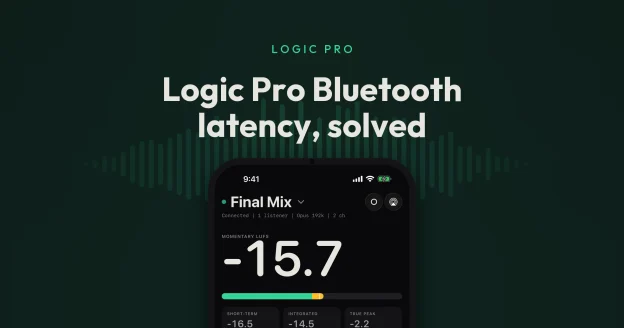
No. Auxfeed is a one-way copy of the audio, not a monitoring path. Logic keeps playing through your interface exactly as before. The phone hears the stream slightly after the Mac, which is fine for checking a mix and not meant for tracking.
Do I need an account, and is it free?
Streaming on your own Wi-Fi is free and needs no account. To share across different networks, for example with a client in another city, use Auxfeed Pro ($9.99/month or $79.99/year, with a 7-day free trial on the annual plan).
Can I use an Android phone instead?
Yes. The same plugin streams to the Auxfeed Android app too.
Related Guides
Download Auxfeed
Free to use in the studio with no account required: install the plugin and the iPhone app, then press play.
For a complete guide to using your phone as a reference monitor while mixing, see Phone as Studio Monitor — The Engineer’s Guide.