
Can I hear my DAW on my iPad? Yes. Put the free Auxfeed plugin on your master bus, open the free Auxfeed app on your iPad on the same Wi-Fi, and tap your stream. Your mix plays on the iPad as you work, with real meters on a big screen, no export and no account.
This guide walks through the whole thing on iPad: setting up, connecting from the Wi-Fi list, a QR code or a share link, reading the Player and its meters, the Monitor controls, the Tools (Phase, Spectrum, Heat Map, Loudness), recording takes, using Auxfeed beside other apps, listening from another city with Auxfeed Pro, and what to check when the iPad cannot see your stream.
What you need
- The Auxfeed plugin in your DAW on a Mac or Windows computer. It comes as AU, VST3 and AAX, so it loads in Logic Pro, Pro Tools, Ableton Live, Cubase, Studio One, REAPER, FL Studio, Bitwig and the rest. Download it free.
- The Auxfeed app on your iPad, free on the App Store. Any iPad on iPadOS 16 or later.
- The same Wi-Fi. The iPad and the computer have to be on the same network. The computer can be on Ethernet as long as it is the same router.
That is all. No account, no IP addresses to type, nothing to pay for listening on your own Wi-Fi.
Step 1: Install the plugin and the app
Run the plugin installer on your computer, then open your DAW. If it does not show Auxfeed yet, rescan plugins (Logic Pro: Plug-in Manager; most other DAWs rescan on launch).
On the iPad, install Auxfeed from the App Store and open it. The first time, the app asks to find your stream: tap Allow access, then allow it in the system prompt. iPadOS needs this permission before any app can see devices on your Wi-Fi. If you tapped Don't Allow by accident, see Troubleshooting.
Step 2: Start a stream in your DAW
- Insert Auxfeed on your master bus (Stereo Out, Master, Main or Mix bus, depending on the DAW), in the last slot so it hears exactly what you hear. You can also put it on any bus or track to send just that.
- Leave it on Wi-Fi and type a stream name you will recognise, like Final Mix.
- Click Start streaming. The status line turns live.
- Press play in your DAW.
The plugin sends PCM lossless, Opus or AAC (AAC on Mac only). On a good Wi-Fi network PCM is the honest reference; on a busy network Opus holds up better. The iPad plays all three.
Step 3: Connect your iPad
There are three ways in. Most of the time you will only ever use the first.
From the Wi-Fi list
Open Connect in the sidebar. Every stream on your Wi-Fi shows up under On this Wi-Fi by itself, each card with its name and format (for example "PCM | Stereo | 48 kHz"). Tap one and the app switches to the Player and starts listening. Several plugins, or several instances in one session, show as separate cards: a mix bus, a vocal bus, a client mix.
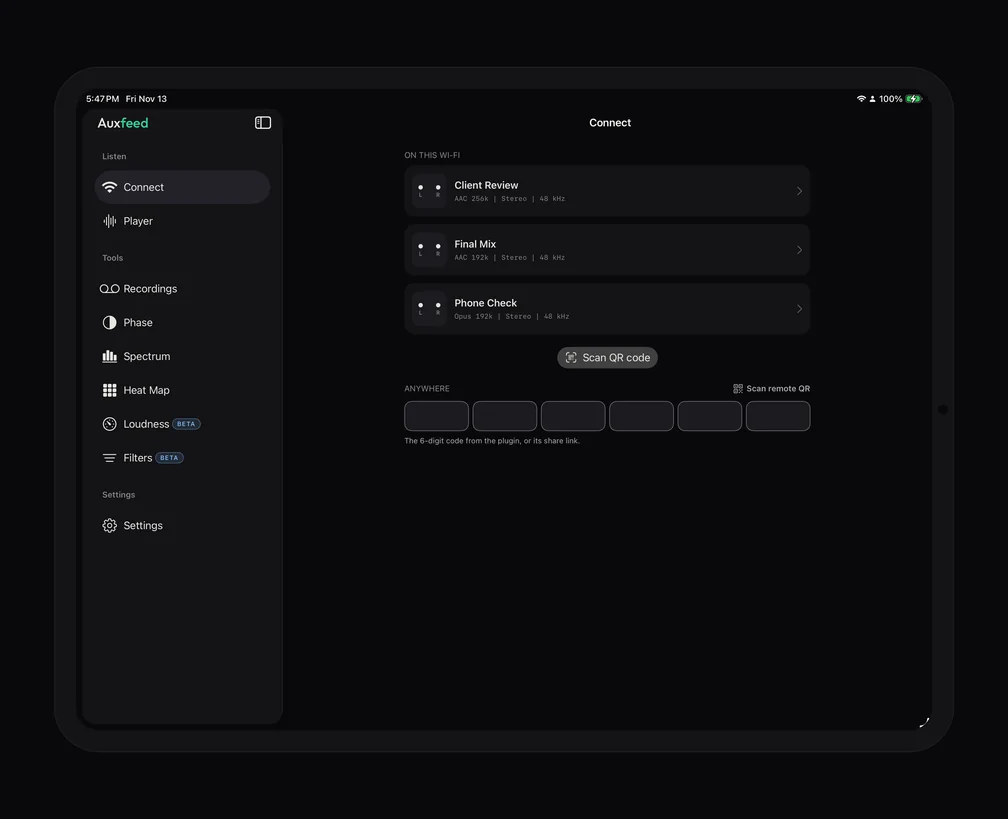
If the list stays empty, the app shows a card to get the plugin and, after a few seconds, a reminder that Auxfeed has to be running in your DAW on the same Wi-Fi.
With a QR code
In the plugin, click Show QR code and point the iPad camera at it. It joins that exact stream, which helps when a studio has many streams or a network that hides them. The Scan QR code button under the list on Connect does the same from inside Auxfeed.
With a share link or a 6-digit code
For Remote streams (see Listening from another city), the plugin gives a 6-digit code and a link like https://auxfeed.app/s/ followed by the code. Tap the link on the iPad, in Messages, Mail or anywhere else, and Auxfeed opens and joins. Or type the code into the Anywhere boxes on Connect, or paste the link there. Listening is free: there is nothing to buy and no account to make on the iPad.
The Player and its meters
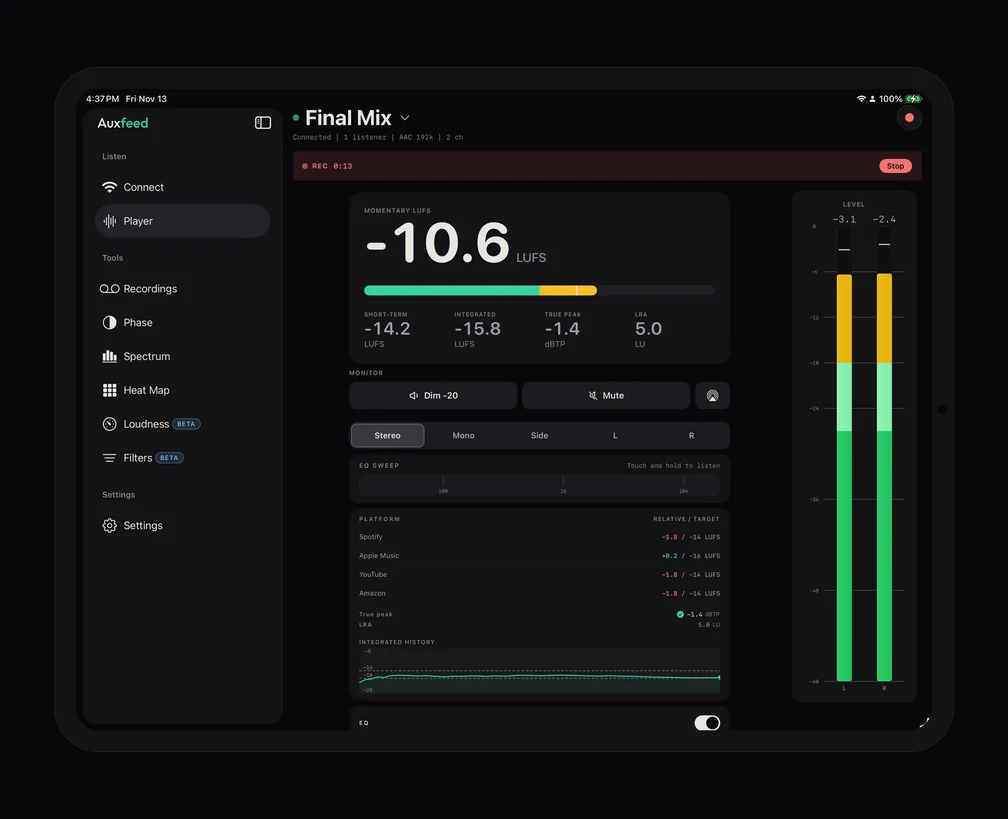
There is no play button to find: once you join, it plays. The stream name sits at the top with a status line under it (connected, codec, channels, how many people are listening). Tap the name for Copy link (on Remote streams), Stream details and Disconnect.
On a full-screen iPad the Player is two columns: controls on the left, a full-height LEVEL meter on the right.
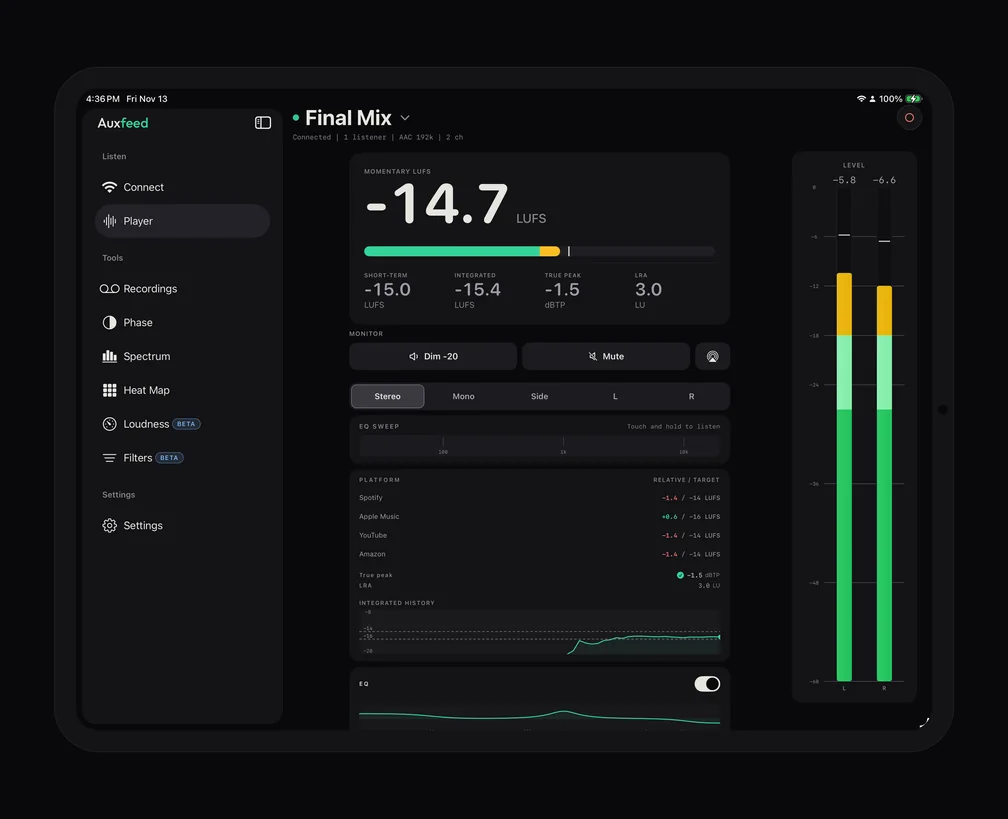
- LEVEL: a meter per channel with peak readouts and clip indicators. Tap the meters to clear the clip hold.
- Momentary and short-term LUFS: free, live, large enough to read from the desk.
- Integrated LUFS, true peak (dBTP) and LRA: with Auxfeed Pro. Tap a value to reset it.
- Platform targets (Pro): how far your loudness sits from Spotify, Apple Music, YouTube and Amazon, plus an integrated history graph.
- Surround: a stream with more than two channels (up to 12) shows a tile per channel, which you can solo or mute with Pro.
New to loudness numbers? What Is LUFS? covers the basics and LUFS Metering Explained goes deeper. For using the iPad as a dedicated meter screen next to your monitors, see Use Your Phone as a Second Meter Screen: everything there works the same on iPad, only bigger.
Monitor controls
The MONITOR row changes only what you hear on the iPad. Your DAW and every other listener hear the mix untouched.
- Dim -20 drops the level by 20 dB for talking over playback; Mute silences it.
- The AirPlay key sends the iPad's output to a HomePod, an Apple TV or another AirPlay speaker. AirPlay adds a noticeable delay, and the app says so when you use it. See AirPlay from Your DAW.
- Stereo | Mono | Side | L | R: Stereo is free. Mono (does it collapse well?), Side (what lives only in the sides) and L or R alone are part of Pro.
EQ SWEEP and the EQ
EQ SWEEP (Pro) is the strip under the Monitor row. Touch and hold it to solo a narrow band right under your finger, slide to sweep through the spectrum, and lift to get the full mix back. It is the fastest way to find the boxy mids or the harsh 3 kHz you can hear but cannot place. Further down, the EQ (Pro) has a low shelf, a swept mid peak and a high shelf, so you can hear how the mix holds up with less low end or a duller top, the way it will on many consumer systems. Like the Monitor row, both only change what this iPad plays.
The Tools on iPad
The sidebar lists each tool on its own row under Tools, so they are one tap away while you listen. The Tools are part of Auxfeed Pro; without Pro, tapping one shows what Pro includes.
Phase
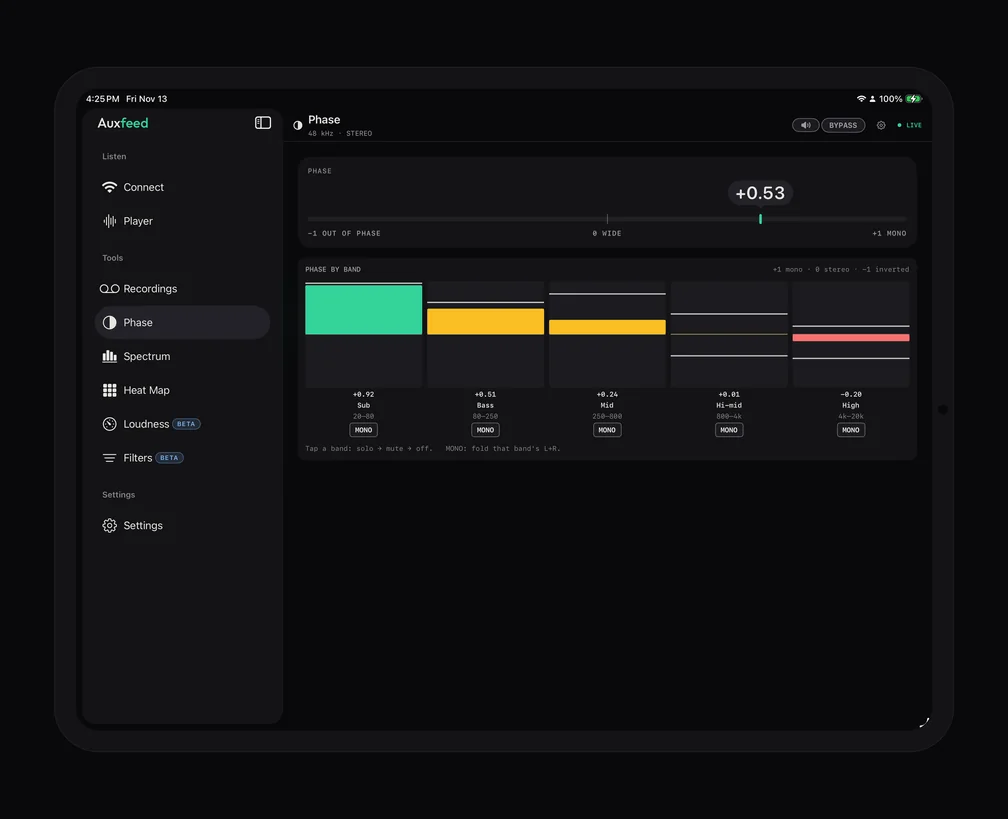
A large correlation meter reads from +1 (mono) through 0 (wide) to -1 (out of phase) for the full band and for the lows. Phase by band splits the mix into five bands (Sub, Bass, Mid, Hi-mid, High), each with its own reading: tap a band once to solo it, again to mute it, again to clear it, and use MONO on a band to fold just that part to mono and hear whether it holds.
Spectrum and Heat Map
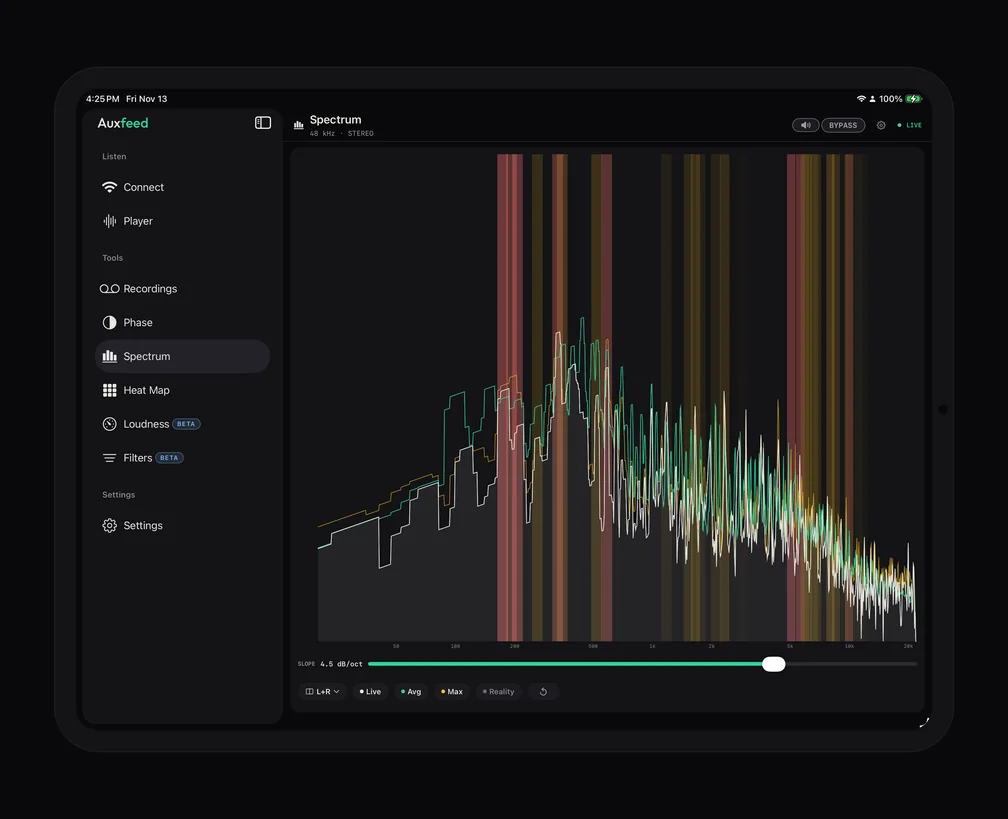
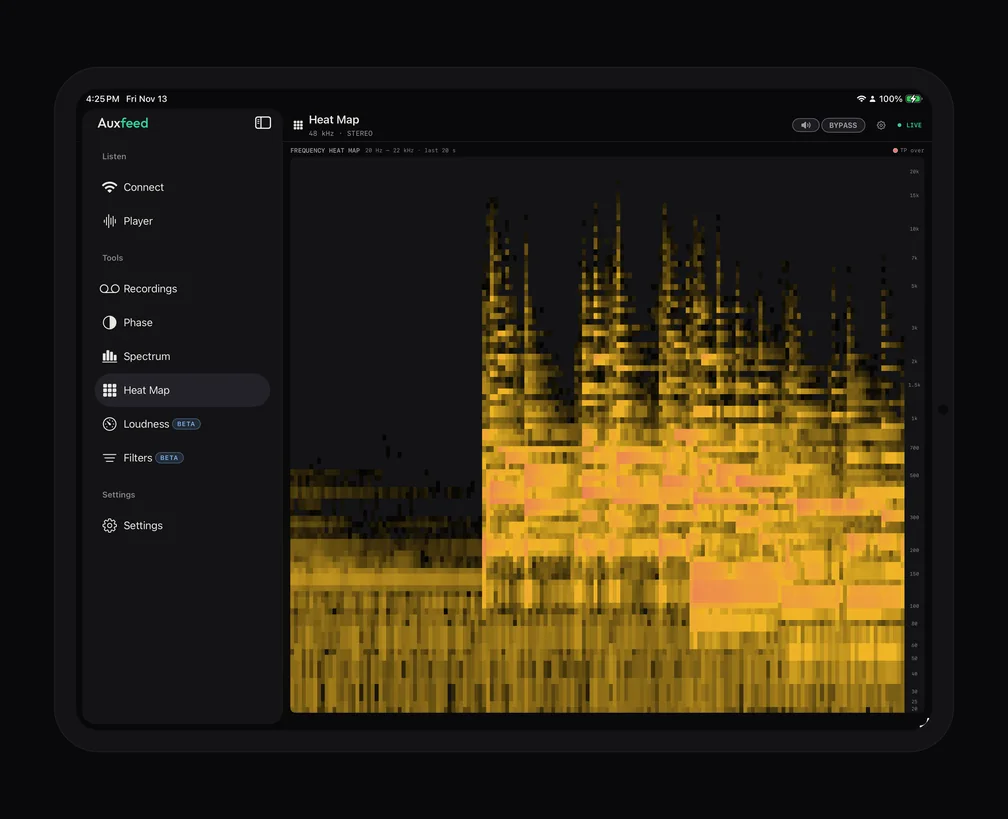
Spectrum draws the live spectrum with optional average, peak-hold and Reality traces and a slope readout. Touch and hold anywhere on the graph to read the frequency and level at your finger. Heat Map shows the last 20 seconds of the spectrum as a scrolling picture, with true-peak overs marked, so a resonance that only shows up in the chorus is easy to spot.
The Heat Map needs a few seconds of playback to fill the screen; after that it keeps scrolling as the song plays.
Loudness
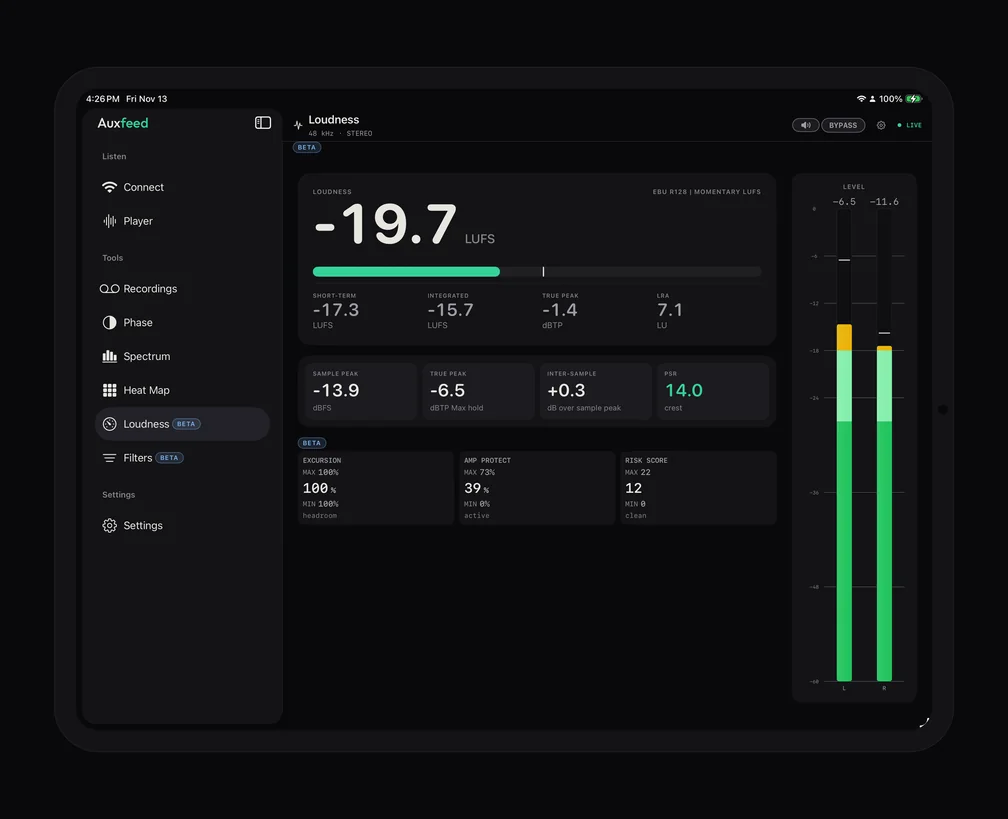
Loudness (marked Beta) puts every loudness number on one page: momentary, short-term and integrated LUFS, true peak and LRA, plus a peaks card with sample peak, inter-sample peaks and PSR. Tap any value to reset it, for example at the top of the chorus.
There is also Filters (Beta): audition a fix on what you hear (band solo and mute, mono, high-pass, low-pass, notch, tilt, limiter) before you touch the session.
Recording takes
With Auxfeed Pro, the round Record button at the top right of the Player saves what you hear as a WAV file on the iPad. A REC bar with a timer shows while it runs; tap Stop and the take is saved. The button appears only when the plugin has Allow listeners to record switched on, so the person streaming always decides.
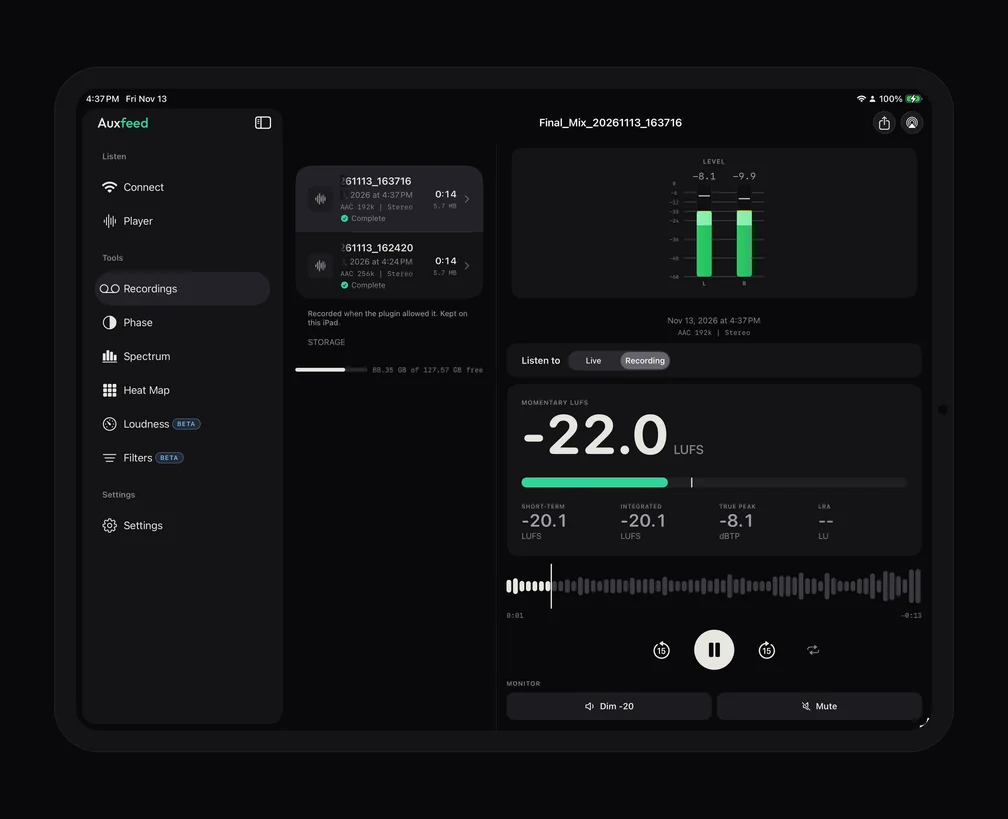
Recordings in the sidebar lists your takes. Open one to play it, see its loudness, switch Listen to between Live and the recording to compare a take with the mix as it is now, or tap Share to send the WAV by AirDrop, Messages or Mail. Takes stay on the iPad until you delete them (swipe the row).
Sidebar, Split View and Stage Manager
Full screen, in landscape or portrait, Auxfeed uses a sidebar: Listen (Connect, Player), Tools (Recordings, Phase, Spectrum, Heat Map, Loudness, Filters) and Settings. The button at the top of the sidebar hides it when you want the Player full width; tapping the Auxfeed name takes you back to the Player (or to Connect when you are not listening).
Put Auxfeed in Split View, Slide Over or a small Stage Manager window and it switches to the compact layout with a tab bar (Connect, Player, Tools, Settings; Recordings sits inside Tools). Audio keeps playing when you switch apps, so you can keep the stream going next to your lyric sheet, notes or the DAW's own remote app.
Two settings are worth a look on an iPad that lives on the desk: Keep screen awake while listening, and Buffer size (Low Latency, Normal or More Stable; a larger buffer copes better with weak Wi-Fi and adds delay).
Headphones and AirPods
The iPad plays through its own speakers, wired headphones, AirPods or any Bluetooth headphones. Bluetooth adds its own delay, which matters for tracking and not at all for judging a mix. If a Bluetooth output drops, the app can keep playing from the iPad's speaker (Auto-resume on Bluetooth disconnect in Settings). For what AirPods are and are not good for, see Mixing on AirPods and How to Check Your Mix on Bluetooth Headphones.
Listening from another city (Auxfeed Pro)
On the same Wi-Fi, Auxfeed is free. To reach an iPad somewhere else, a client at home or a producer in another country, the plugin switches from Wi-Fi to Remote and streams over the internet. Remote is what the plugin does once its computer is linked to Auxfeed Pro ($9.99 a month or $79.99 a year, with a one-week free trial on the yearly plan): the person streaming links the computer once, and every DAW on it can stream Remote. How that works, step by step: How to link your computer to Auxfeed Pro.
Listening stays free. The listener taps the share link, or types the code, and is listening a few seconds later, with no account. On the iPad, Pro also unlocks the listening tools in this guide: Mono, Side and L/R, integrated LUFS, true peak and platform targets, the EQ and EQ SWEEP, recording, and the Tools. More in Auxfeed Pro, How to Share a Live Mix With a Client and Remote Audio Monitoring.
Troubleshooting
The iPad does not see the stream
- Is the plugin streaming? It has to say it is live, and it has to be on Wi-Fi, not Remote.
- Same Wi-Fi? Check the network name on the iPad (Settings > Wi-Fi) and on the computer. Guest networks and some mesh or office networks keep devices apart; use the main network.
- Is Auxfeed allowed to look? On the iPad: Settings > Privacy & Security > Local Network > Auxfeed must be on. If it is off, the app shows Permission denied with an Open Settings button.
- Try the QR code. If the list stays empty but the QR code from the plugin joins, discovery is being blocked on your network and the stream itself is fine.
Run Check connection in the plugin
In the plugin, open the ? menu and choose Check connection. It tests this computer (its Wi-Fi address, its port, whether the stream is advertised, whether anything blocks incoming connections) and tells you in one line what is wrong, with the steps to fix it and a button straight to the right setting.
Firewall
The most common reason a stream is listed but will not play is a firewall on the computer stopping the iPad from connecting.
- Mac: when macOS asks whether your DAW may accept incoming connections, click Allow. If you said no, open System Settings > Network > Firewall > Options, set your DAW to allow incoming connections, and make sure Block all incoming connections is off.
- Windows: when Windows asks about your DAW (the DAW, not Auxfeed), tick your network and click Allow. If Windows sees your network as Public it blocks incoming connections: set it to Private under Settings > Network & internet. Check connection names the exact rule that blocks you.
When the first connect fails, the app says the same thing: check that Auxfeed is on under Local Network in Settings, that the iPad is on the same Wi-Fi as the computer, and that the computer's firewall allows Auxfeed.
VPN
A VPN on the iPad or on the computer can route traffic away from your Wi-Fi, and then the two cannot find each other. Turn the VPN off while you listen on Wi-Fi, or allow local traffic in its settings if it has that option. For Remote, a VPN can also block the connection to Auxfeed's servers; if Remote will not start, try with the VPN off.
Dropouts or a stream that keeps reconnecting
Switch the plugin from PCM to Opus, set Buffer size to More Stable in the app's Settings, and move the iPad closer to the router or away from a crowded 2.4 GHz band. If the app shows an error, tap Send logs: that sends us exactly what happened (how logs work).
Quick answers
Is it free? Yes. The plugin, the iPad app and listening on your Wi-Fi are free, with no account.
Can an iPad and an iPhone listen at once? Yes. Every device that joins gets its own stream, and the plugin shows how many are listening.
Does it work in portrait? Yes. The sidebar layout works both ways; landscape gives the Player its two columns.
Is there a separate iPad app? No. The same Auxfeed app runs on iPhone and iPad; on iPhone, see How to Monitor Logic Pro on Your iPhone and How to Monitor Your Mix on Your Phone.
Still stuck? Write to contact@auxfeed.com with a screenshot of the plugin and the app, and we will get you listening.